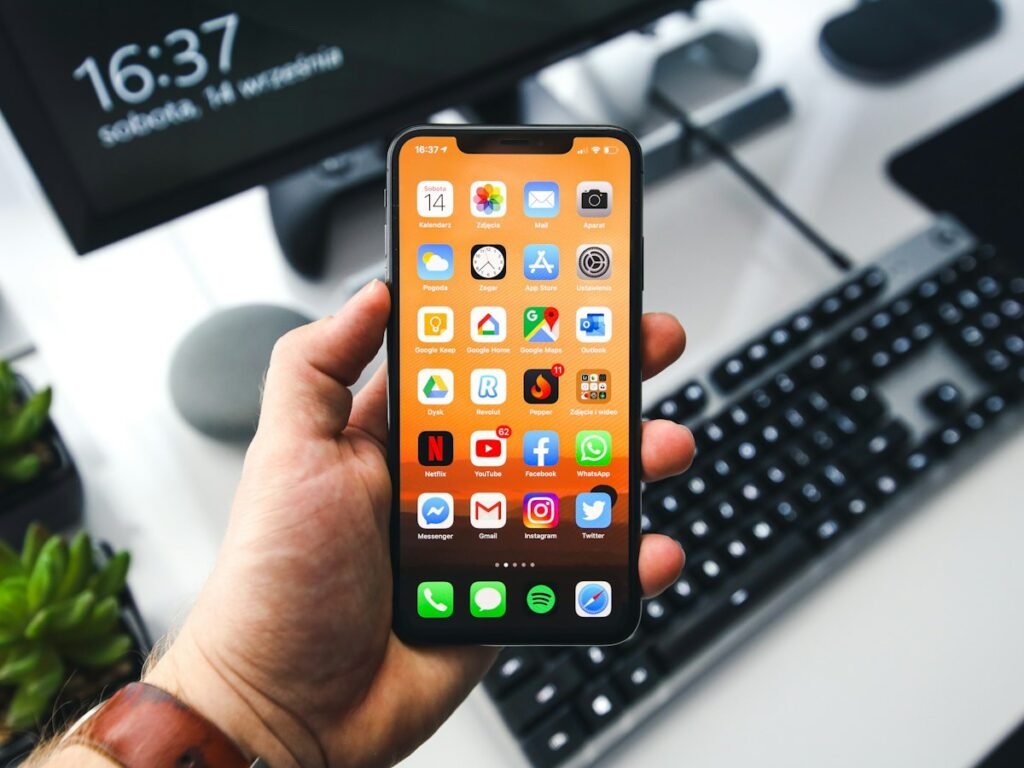
How to Free Up iPhone Storage Without Losing Photos: A Safe Step-by-Step Guide
Quick answer: If your iPhone says storage is almost full, first check Settings → General → iPhone Storage. Review the largest categories, remove downloads you no longer need, consider offloading unused apps, and use Optimize iPhone Storage if you already use iCloud Photos and have sufficient cloud capacity. Do not delete irreplaceable pictures or conversations until you have confirmed a separate backup.
This guide explains how to free up local storage without blindly deleting important memories. It distinguishes iPhone device storage from iCloud storage, which are related but not interchangeable.
Why does an iPhone run out of space?
Videos, photos, downloaded movies, offline music, messages, apps and documents can all occupy storage. An app’s total may include downloaded data or cached content. A 128 GB phone does not gain physical capacity when you purchase more iCloud storage: cloud services may help reduce local copies, but they do not upgrade the device’s built-in storage.
Step 1: Identify what is actually using storage
- Open Settings.
- Tap General, then iPhone Storage.
- Wait for the usage breakdown and app list to load.
- Note the available space and the largest categories.
- Review any recommendations, but understand their effect before accepting.
Apple’s storage overview describes this screen and explains that offloading an app is different from deleting it. If Photos occupies most space, prioritize photo storage options. If an offline-video app is large, inspect its downloaded content first. There is no universal one-tap cleanup that is right for every phone.
Step 2: Offload unused apps rather than deleting their data
Offloading removes the app itself while retaining its documents and data, so it can often be reinstalled later. Deleting removes the app and associated local data; recovery may depend on the app’s own account, sync and backup arrangements.
To review an individual app, open iPhone Storage and tap its entry. Where available, choose Offload App after reading the explanation. Apple’s current iPhone storage guide also describes the optional automatic Offload Unused Apps setting under Settings → Apps → App Store. Menu names can differ with iOS versions.
Step 3: Reduce photo storage without losing your library
If you use iCloud Photos, Apple offers Optimize iPhone Storage, which stores full-resolution originals in iCloud while keeping smaller device copies when appropriate. Go to Settings → your name → iCloud → Photos and check the current storage options for your iOS version. Apple’s photo and video storage guide documents the feature.
Important: iCloud Photos is a syncing service, not a separate archival backup. Deleting a synchronized photo on one device can delete it from other devices using the same library. Before deleting anything, create and verify an independent copy, for example on a computer or external drive. See Apple’s instructions for archiving iCloud information.
Optimization is not instant and requires sufficient iCloud capacity. If your account’s cloud storage is already full, review its usage and plan before enabling changes. Avoid assuming that every item has already uploaded; check sync status and open representative originals.
Step 4: Review downloaded videos, music and podcasts
Offline downloads are often easier to remove safely than personal photos. Open the relevant streaming, podcast or video app and inspect its Downloads or Offline section. Remove content you can download again, then revisit iPhone Storage to see the change. A downloaded show may be available to redownload only while you have access to the service, so check before deleting a hard-to-replace item.
Step 5: Inspect Files and large attachments
Open the Files app and review the On My iPhone and Downloads locations. Delete only files you recognize and no longer need. Files stored under iCloud Drive may sync across devices; deleting a cloud-synced file can affect other devices. Likewise, conversations and attachments may contain important documents, receipts or family messages. Review them before removal, and confirm that a separate copy exists if they matter.
Step 6: Merge duplicate photos carefully
Apple’s photo storage guidance notes that supported Photos versions can identify duplicate photos and videos for review. Inspect the proposed matches rather than assuming every similar-looking picture is interchangeable. Burst shots, alternate edits and slightly different images may serve different purposes. Confirm your backup before large-scale merging.
What not to do
- Do not install a random “phone cleaner” that requests broad photo or account permissions without a clear reason.
- Do not erase the phone simply to remove “System Data” without checking backups and official troubleshooting guidance.
- Do not delete iCloud Photos originals believing they will remain safely stored elsewhere by default.
- Do not pay for more iCloud space expecting it to physically enlarge the phone’s built-in storage.
- Do not remove an app containing unsynced data until you know whether that data can be restored.
Example: a safe 20-minute cleanup plan
- Minutes 0–3: Check iPhone Storage and write down available space.
- Minutes 3–7: Remove two or three large, replaceable offline downloads.
- Minutes 7–11: Review unused apps and offload one where appropriate.
- Minutes 11–15: Check Photos sync and Optimize Storage settings without deleting originals.
- Minutes 15–20: Inspect Files downloads and recheck available storage.
The amount recovered will vary. A few large offline videos may free more space than dozens of tiny app icons. Focus on what your storage breakdown actually shows.
Frequently asked questions
Will buying iCloud storage fix a full iPhone?
Not automatically. Extra iCloud capacity may enable photo optimization or cloud backups, but the iPhone’s physical storage stays the same.
Does Offload App delete my documents?
Apple says offloading retains documents and data while removing the app. Nevertheless, confirm important information is backed up before changing an app you depend on.
Can I free space without deleting photos?
Often yes: start with replaceable offline downloads, unused apps, and—if you use iCloud Photos—its optimization option. Results depend on what fills the device.
Why is storage still full after cleanup?
Some categories take time to recalculate, and new downloads or photos may consume the space again. Restarting may help refresh the display, but do not treat a restart as a substitute for identifying large files. If the issue persists, consult Apple’s current support guidance.
Sources and editorial method
Official documentation: Apple: Check iPhone storage, Apple: Manage photo and video storage, Apple: Manage storage on iPhone, and Apple: Archive iCloud information. This independent explainer was drafted with AI assistance and reviewed against official instructions; it is not a claim of hands-on testing on a specific phone. Photo: Sebastian Bednarek / Unsplash, under the Unsplash License. The image is illustrative.